Your HTML5 banner ad looks perfect. The animation plays, the colours are right, the logo sits exactly where the designer wanted it. Then you click it and nothing happens. If your clickTag is broken, this is the moment you find out, usually after the campaign has already started spending money.
I ran into this on a Jaipur home decor campaign, and I want to share what I learned so you can fix it faster than I did.
ClickTag Is Broken? Here Is the Quick Answer
A broken clickTag usually means the HTML5 banner cannot pass the landing page URL to the ad server correctly. Check these things first:
- Confirm the clickTag variable is declared in the primary HTML file.
- Check the spelling and capitalisation. It is case sensitive.
- Make sure the click handler actually calls window.clickTag.
- Remove any hard-coded URL from the code.
- Check the ad.size meta tag and the ZIP file structure.
- Confirm you are using the right method for your platform.
- Run the HTML5 validator before uploading.
My Story: The Banner That Looked Perfect and Earned Nothing
Last year, a Jaipur home decor brand sent me a set of banners for a Google Ads display push. Their designer had spent days on them. The creative looked beautiful in the preview.
Two days after launch, impressions were healthy but clicks in the report were almost zero. The client thought the audience was wrong. I thought so too, for about an hour. Then I clicked the live banner myself and nothing happened.
That was my first real encounter with the problem. A clicktag is broken situation does not announce itself with an error. The ad just sits there, looking pretty and earning nothing. I wrote this guide so you do not lose two days of budget the way I did.
What Is clickTag in an HTML5 Banner Ad?
A clickTag is a variable inside your HTML5 creative. It holds the click-through URL, the page where people land after they click your banner. The ad server fills in that URL when the ad is served, so the code does not carry the destination itself.
How the Click-Through URL Travels
Think of it like a courier slip. You write the address on the slip at the last moment, and the courier decides the route. The ad server writes the tracking URL into the clickTag, records the click, and then sends the visitor to your landing page.
Your banner only needs to say, “When someone clicks here, open whatever address is inside clickTag.” That is the entire job of a click handler in JavaScript.
Why a Hard-Coded URL Causes Trouble
If you type the landing page straight into the code, the ad server never sees the click. The visitor may still reach your page, but your click tracking shows nothing. Many platforms also reject a hard-coded URL during creative validation. It also makes changes painful, because you must rebuild and re-upload the whole ZIP just to swap one link.
How Do You Know Your clickTag Is Broken?
You rarely get a clear message. Instead, you notice symptoms. Here are the ones I see most often:
- Clicking the banner does nothing at all.
- The banner opens the wrong URL.
- The validator reports a missing clickTag.
- The creative uploads, but clicks never show in reports.
- The click works on your laptop but fails after upload.
- Only part of the banner responds to a click.
- Your platform flags an HTML5 creative error.
If two or more of these sound familiar, your clickTag is broken and the fixes below should help.
7 Reasons clickTag Is Not Working in an HTML5 Ad
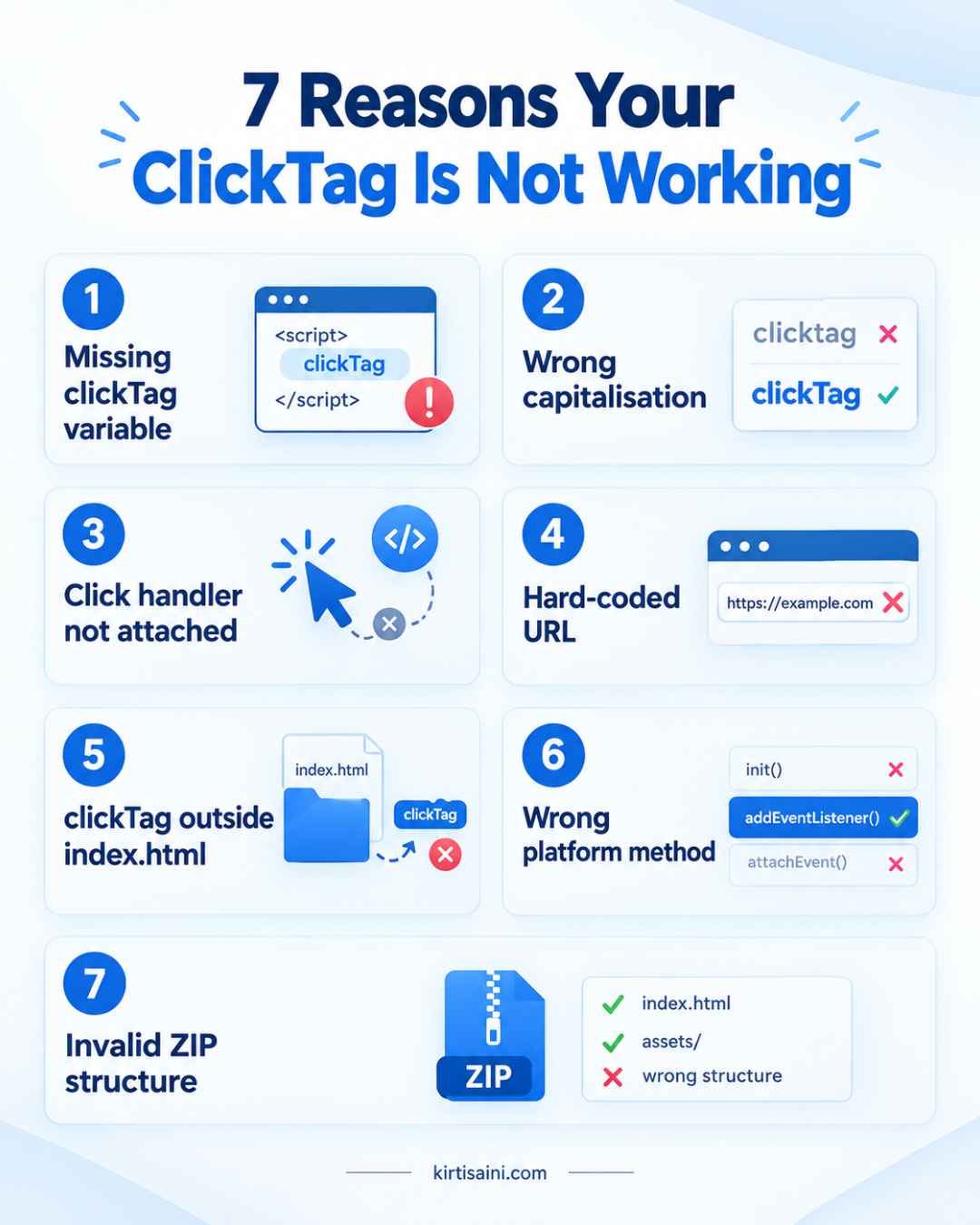
This is the part I would bookmark. In my experience, nearly every case of clickTag not working comes down to one of these seven causes.
1. The clickTag Variable Is Missing
The banner has no var clickTag line at all. Designers sometimes export a banner from a tool that never added it. Without the variable, the platform has nothing to fill in, and your HTML5 ad click not working complaint begins.
2. The Capitalisation Is Wrong
Writing clicktag, ClickTag or click_tag instead of clickTag is a classic mistake. Ad platforms look for the exact spelling. One capital letter in the wrong place and the variable is invisible to them.
3. The Click Handler Is Not Attached
The variable exists, but nothing uses it. The banner has no code telling the clickable area to open the URL. This happens often when a developer copies a banner from an older project and forgets the click event.
4. A Hard-Coded Landing Page URL
This was my home decor client’s problem. Someone had typed the website address directly into the click code. The page opened in local testing, but the platform flagged it and refused to track the click.
5. The clickTag Sits Outside the Primary HTML File
Platforms read the primary HTML file, usually index.html. If your clickTag lives inside a separate script file or a nested folder, the system may never find it.
6. The Wrong Platform Method
Google Ads, Campaign Manager 360, DV360 and Google Web Designer do not all handle clicks the same way. A creative built for one can fail in another. I cover this in a separate section below.
7. The ZIP or Creative Structure Is Invalid
A missing asset, a wrong folder layout, or a missing ad.size tag can break the whole creative. Sometimes the HTML file sits inside a subfolder in the ZIP, so the platform cannot locate it.
How to Fix a Broken clickTag Step by Step
Take it slowly and work through these in order. I do this on every banner now, even when the designer swears it is fine.
Step 1: Open index.html
Unzip the banner and open the index.html file in a code editor. Everything you need to check lives here or is linked from here.
Step 2: Check the ad.size Tag
Inside the head section, look for the ad.size meta tag. It tells the platform the width and height of your banner. A 300 by 250 banner should say so clearly.
<meta name="ad.size" content="width=300,height=250">Step 3: Declare the clickTag
Add the variable in a script block in the head of the page. Keep the name exactly as written.
Step 4: Connect It to the Clickable Area
Link the clickTag to the element people will actually click. Here is the difference between code that fails and code that works.
Broken Version
<script>
document.getElementById("banner").onclick = function() {
  window.open("https://example.com");
};
</script>
This opens a fixed page. The ad server never sees the click.
Working Version
<script>
var clickTag = "";
</script>

<script>
document.getElementById("banner").onclick = function() {
  window.open(window.clickTag, "_blank");
};
</script>
This reads the URL from window.clickTag, so the platform stays in control. The exact setup can vary by ad platform and creative type, so always check your platform’s current documentation.
Step 5: Remove Hard-Coded URLs
Search the whole file for http and https. Any landing page or tracking link typed into the code should go. Leave only the URL source that your platform allows.
Step 6: Check the ZIP
Zip the contents, not the parent folder. Open the ZIP and confirm that index.html sits at the top level and that every image, font and script is inside.
Step 7: Run the Validator
Upload the ZIP to the relevant HTML5 validator. The Google Ads HTML5 validator is a good first test for uploaded ads. Fix every warning it raises, then test again.
Step 8: Test the Final Uploaded Creative
Do not stop at the validator. Preview the creative inside the platform, click it, and confirm the landing page opens correctly. This is the step I skipped for my home decor client, and it cost me.
Google Ads vs CM360 vs DV360 vs Google Web Designer
This is where many marketers get confused, so let me explain it the way I wish someone had explained it to me.
Google Ads has its own list of requirements for uploaded HTML5 ads, covering file size, asset rules and clickability. The validator checks them before you publish.
Campaign Manager 360 treats the click tag as a standard variable. The ad server controls the click-through URL and the tracking, which is why a hard-coded URL is a problem there.
DV360 supports click tags in HTML5 display creatives and also separates normal click tags from rich media exits. Read its guidance before assuming the same file will work everywhere.
Google Web Designer works differently. Creatives built in it usually rely on an exit event instead of a manually written clickTag. If you add a clickTag by hand to a Web Designer bundle, you may trigger an error. So if your clickTag is broken in a Web Designer file, check the exit setup first.
I now ask one question before touching any code: “Which platform will serve this banner?” That single question saves me about an hour per campaign.
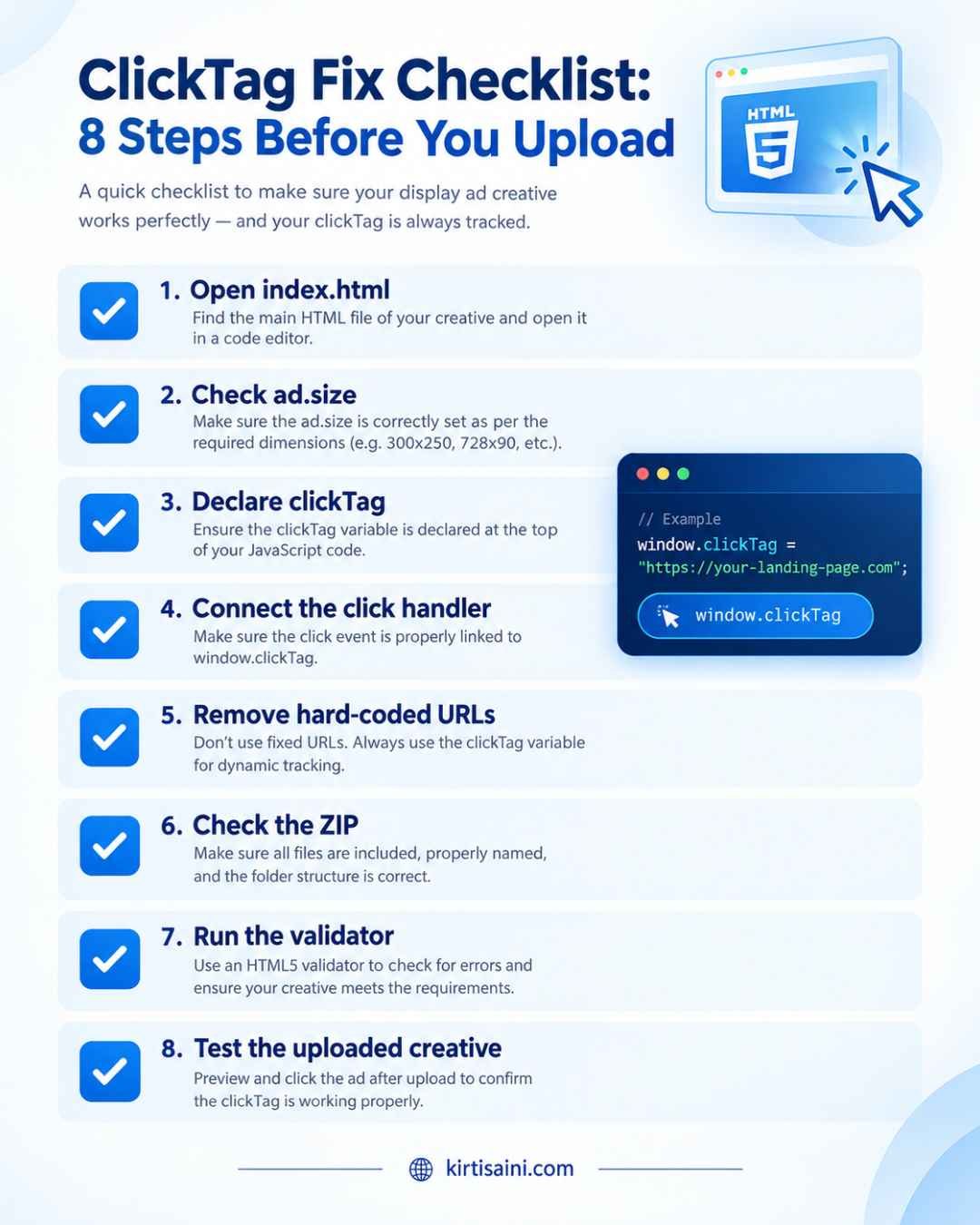
How to Test an HTML5 Banner Before Uploading
A short checklist beats a long regret. Run through this before every upload:
- index.html exists at the top of the ZIP
- The ad.size tag is present
- The clickTag is present where your platform requires it
- The click handler fires on click
- The spelling and casing are exact
- No hard-coded tracking URL remains
- All assets exist inside the ZIP
- The validator passes
- The landing page opens correctly
Click tracking ties directly into measurement, so I also suggest reading my guide on Google Ads conversion tracking. A click can look fine on screen and still fail in reporting if the setup behind it is weak. If you are running smaller budgets, my notes on PPC for small businesses cover how to catch these issues before they eat your spend.
Quick Poll: What Broke Your Banner?
I am curious which one hurt you most. Tell me in the comments:
- Missing clickTag
- Wrong capitalisation
- Hard-coded URL
- Platform mismatch
- Something else entirely
I read every comment, and your answer might shape my next troubleshooting guide.
Final Takeaway
When your clickTag is broken, the landing page is almost never the culprit. The fault usually sits in a small piece of code, a spelling slip, or a platform mismatch. Work through the checklist, validate the ZIP, and test the final creative inside the platform.
I lost two days of budget on that home decor campaign because I trusted a preview instead of a real click. You do not have to repeat that. Fix the variable, connect the handler, remove the hard-coded link, and click your own ad before the audience does.
If you want help auditing your Google Ads setup, you can find me on my homepage as Kirti Saini, performance marketer and media buyer in Jaipur.
FAQs About Broken clickTag Problems
What does “clickTag is broken” mean?
It usually means an HTML5 banner cannot read or run the click-through URL correctly. The cause may be the variable, the click handler, the platform setup or the creative structure.
Why is my clickTag not working?
Check the variable name, capitalisation, click handler, hard-coded URL, primary HTML file and platform requirements. Then test the creative in the correct validator.
Can I hard-code the landing page URL?
For workflows built on click tags, hard-coding the destination can interfere with ad server tracking and makes changes harder after upload.
Does Google Web Designer use clickTag?
Not in the same way as a hand-coded banner. Relevant Google Web Designer creatives use exit events instead of manually defined click tags.
How do I test an HTML5 clickTag?
Use the platform validator, inspect the primary HTML file, click the banner in preview, and confirm the final landing URL after upload.
2 Quick Tips
Tip 1: Keep the clickTag Readable
Do not minify the clickTag line. A readable name is easier for validators and for you to spot when something goes wrong.
Tip 2: Test the Final ZIP, Not the Source File
Your working folder and your uploaded ZIP can differ. Always test the exact file you plan to upload.